
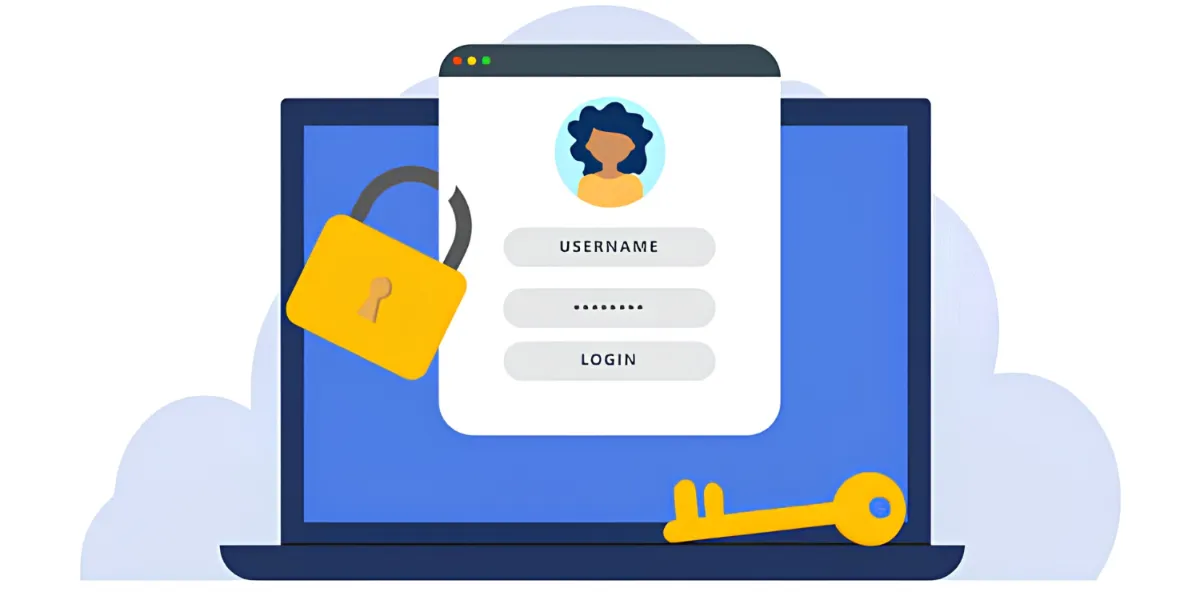
If you have ever clicked "Save password?" after logging into a site, you have already used a password manager. Your browser has quietly been storing credentials, offering to fill them in, and syncing them between your devices, often without you thinking of it as a security tool at all. For a lot of people, that is the entire system. It is convenient, it is already there, and it asks nothing of you.
Convenience, though, is only one part of the picture. Browser-based managers and dedicated ones solve overlapping problems in different ways, and the gap between them matters more as your digital life grows. This article looks at how each approach works, where the practical differences lie, and how to think through which one suits the way you actually spend time online. The goal is not to declare a winner, but to help you make an informed choice.
How Browser Password Managers Work
The password feature built into browsers such as Chrome, Safari, Firefox, and Edge is designed to remove friction. When you sign in somewhere, the browser offers to remember the details. Next time you visit, it fills them automatically. Sign in to the same browser on your phone, and those credentials usually travel with you.
Under the hood, these tools tie your saved passwords to your browser account and, in most cases, to your device's own security. On many systems the stored data is encrypted and unlocked using your account credentials or a device passcode. That is genuinely useful, and for casual browsing it covers the basics.
The limits tend to show up at the edges. Browser managers are built around one browser ecosystem, so moving between, say, Safari on a phone and Chrome on a laptop can feel clumsy. They also focus mainly on website logins, offering little structure for the wider collection of sensitive information most people accumulate over time.
What a Dedicated Password Manager Adds
A dedicated password manager is a standalone tool whose only job is managing credentials and related secrets. Because that is its entire purpose, it usually goes deeper than a browser feature can.
The most obvious difference is scope. Dedicated managers typically store more than website logins. They hold secure notes, payment card details, software keys, identity documents, and increasingly passkeys, all inside one organized vault. Folders, tags, and search turn a chaotic pile of credentials into something you can actually navigate.
They also tend to work across everything. Rather than being tied to a single browser, a dedicated manager generally runs on multiple operating systems and plugs into different browsers through extensions. That cross-platform reach means your vault behaves the same whether you are on a work laptop, a personal phone, or a shared family computer.
The Security Trade-offs to Understand
Security is where the comparison gets interesting, and where blanket statements should be treated with caution. No tool, browser-based or dedicated, offers flawless protection, and anyone claiming otherwise is overselling.
Browser managers benefit from being maintained by large companies with strong engineering teams. Their weak point is often the account they are tied to. If someone gains access to your main browser account and that account is not well protected, your saved passwords may be exposed along with everything else. The convenience of automatic sync can become a single point of failure.
Dedicated managers often lean on a model called zero-knowledge encryption. In this design, your data is encrypted and decrypted on your own device using a key derived from a master password only you know. The provider stores your vault but cannot read its contents, because it never holds the key. This limits how much a breach on the provider's side could reveal. It also raises the stakes for your master password, since losing it can mean losing access, so the responsibility shifts more firmly onto you.
Matching the Tool to How You Live Online
The right choice depends less on which option is technically richer and more on how you use your accounts day to day. A few honest questions help clarify things.
Start with volume. If you manage a handful of logins and rarely stray from one browser, the built-in manager may be perfectly adequate. If you are juggling dozens or hundreds of accounts across work and personal life, the organization of a dedicated tool starts to earn its keep.
Then consider variety. Someone who moves between a Windows desktop, a MacBook, an Android phone, and several browsers gains a lot from a tool that treats all of them equally. Someone living almost entirely inside one ecosystem feels that benefit far less.
Finally, think about what you store. If passwords are the only sensitive thing you need to keep, a browser handles that. If you also want a home for notes, keys, documents, and passkeys, a dedicated vault gives that material a structured place to live rather than scattering it across sticky notes and text files.
Habits That Matter Regardless of Your Choice
Whichever route you take, the tool itself is only part of your security. A few consistent habits do more heavy lifting than most people expect, and they apply equally to both approaches.
Use a distinct, strong password for every account so a problem with one login does not spread to others. Turn on multi-factor authentication wherever it is offered, since a second factor adds meaningful protection even if a password slips out. Review your stored credentials from time to time, updating anything weak, old, or reused. And treat your master credential, whether that is a browser account password or a manager's master password, as the key to everything, protecting it accordingly.
These habits cost little and change slowly, but they compound. A capable tool paired with careless habits is far weaker than a modest tool used thoughtfully.
Practical Points to Weigh Before Deciding
- Account count: A few logins may not justify a separate tool; many accounts usually do.
- Device mix: Cross-platform needs favor a dedicated manager that runs everywhere.
- Type of data: Consider whether you need to store more than website passwords.
- Sharing needs: Think about whether family or colleagues need access to certain credentials.
- Offline access: Check whether you can reach your credentials without a connection.
- Transparency: Some people prefer tools whose security design is open to independent review.
Exploring Padloc
If your situation points toward a dedicated approach, Padloc is one option worth considering as you compare tools. It is an end-to-end encrypted password manager built for individuals, families, and teams who want a single organized place for passwords, passkeys, notes, and other sensitive information, rather than relying solely on a browser's built-in feature.
Several of its capabilities line up with the trade-offs discussed above. Padloc uses a zero-knowledge architecture, meaning your data is encrypted in a way that keeps its contents readable only by you, not by the service storing it. It is built on open-source technology, which appeals to people who value being able to examine how a security tool is designed rather than taking claims on faith. For everyday use, it offers secure password generation, autofill, and password health monitoring to help you spot weak or reused credentials.
On the cross-platform question, Padloc works across Windows, macOS, Linux, iOS, Android, and major web browsers, so a vault stays consistent wherever you happen to be working. It supports modern authentication methods including passkeys, biometric unlocking, and multi-factor authentication, which fits the gradual industry shift away from passwords alone. Offline access means you can still reach stored credentials when you are without a connection, and customizable organization through folders, tags, and search helps keep a large collection manageable.
For households and teams, Padloc also allows secure sharing of passwords and vaults with family members or collaborators while keeping the information encrypted. That addresses a common gap in browser-based tools, which are rarely built with shared access in mind. As with any password manager, it is one option among several, and the sensible move is to weigh how its features map onto your own accounts, devices, and habits before deciding.
Whichever tool you choose, the underlying lesson holds: understand how your passwords are stored, protect the key that unlocks them, and pick an approach that matches the life you actually lead online.